Request form and QR code
The form's link and QR code go on your website, business profile, messages or invoices; the customer describes the fault, attaches photos and gets a tracking code.
For businesses that install, maintain and repair at the customer's site: customer request form and online booking, job assignment and calendar, the technician's phone, checklist and signature, estimate templates, customer devices and maintenance contracts. Spare parts, invoicing and accounting share the same data.
01 / 06
The customer describes the fault through the link on your website, or picks a service and books the appointment themselves; the dispatcher enters requests that come in by phone. The request lands in Service Requests and becomes a service job with one tap.
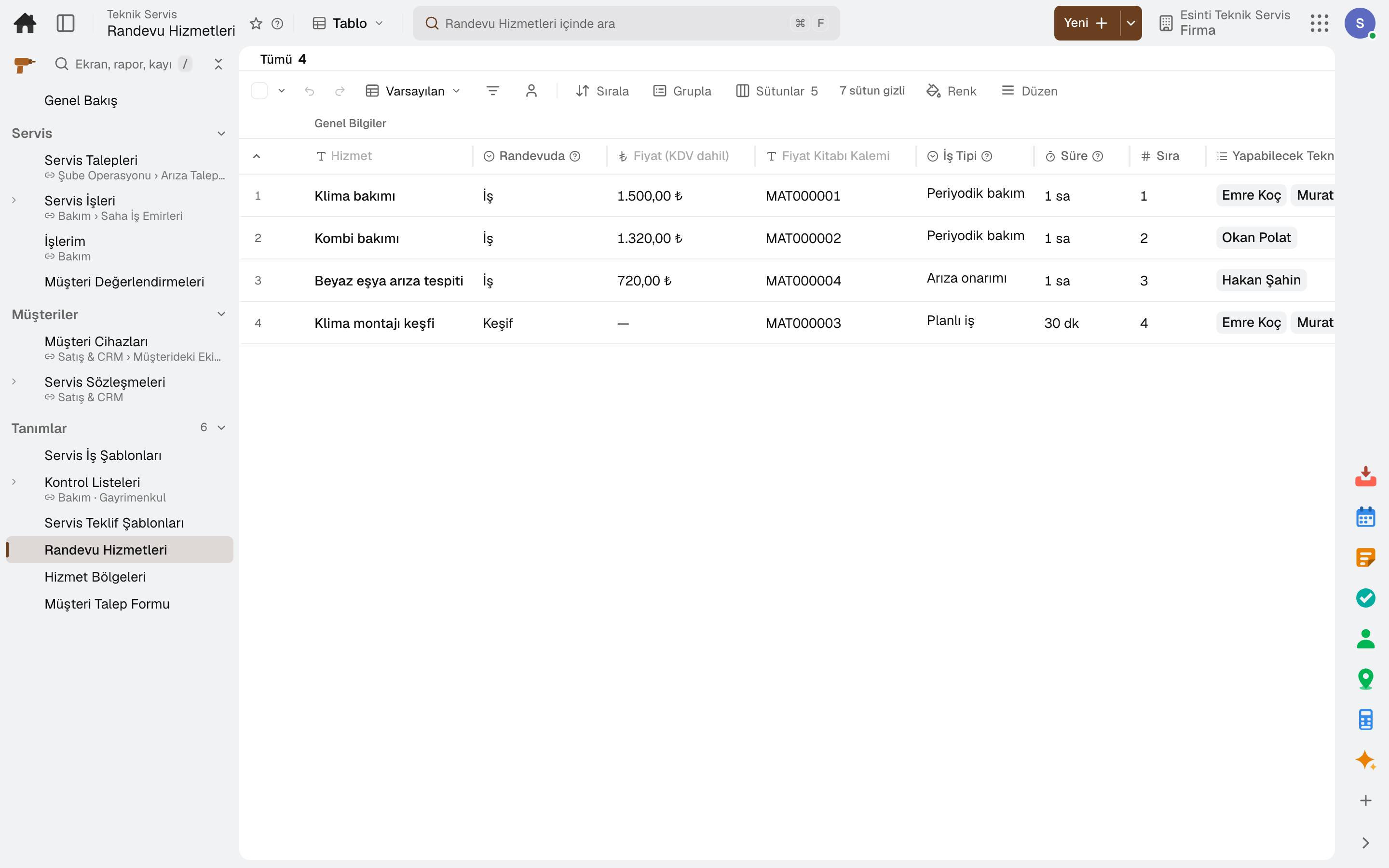
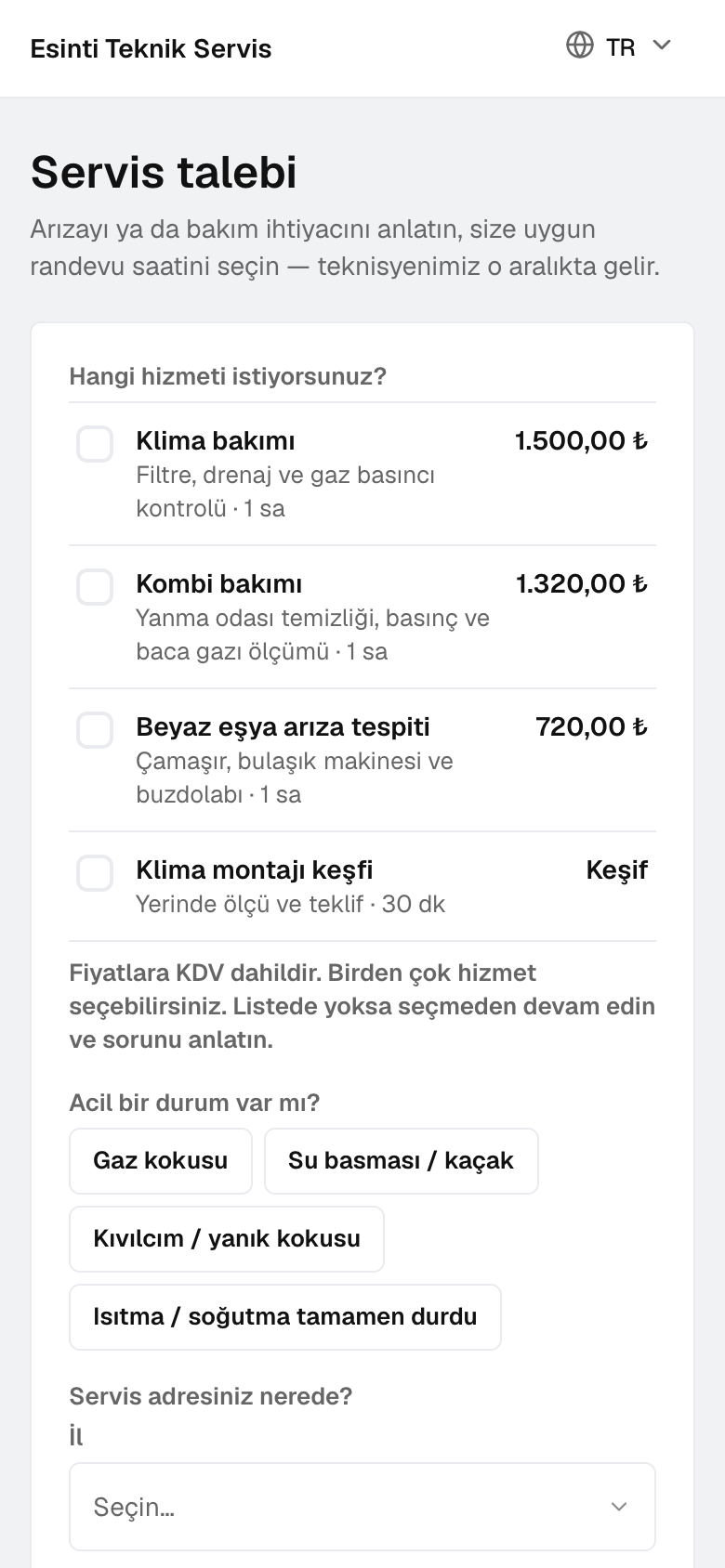
The form's link and QR code go on your website, business profile, messages or invoices; the customer describes the fault, attaches photos and gets a tracking code.
A request from a customer recognized by phone or e-mail is linked to their card; their units, warranty and contract coverage show on the request.
The customer picks a service with its price and duration; the slot is as long as the service, and only technicians who can do that job show as available.
An area is defined by province and district or by postal code; the area's technicians and travel fee apply to the booking, and an address outside every area leaves a request instead.
An emergency such as a gas leak or flooding goes to the on-call technician; the form shows the customer first safety instructions.
A deposit is requested as a percentage or a fixed amount; on cancellation the retention and refund rule applies.
02 / 06
The request becomes a service job, is assigned to a technician and lands on the calendar with its appointment. Unassigned jobs, late appointments and SLA breaches are counted on the dashboard.
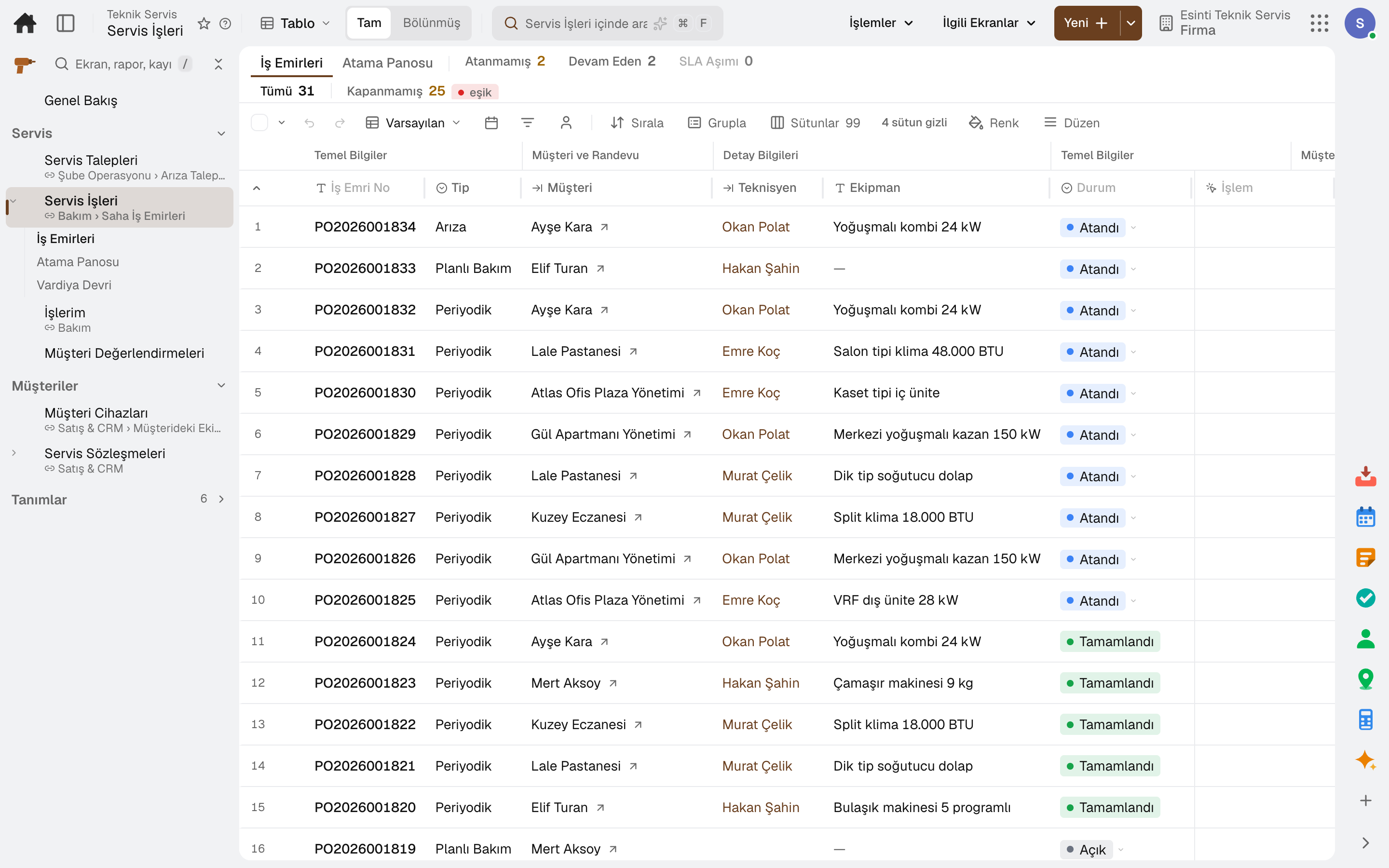
«Convert into a Work Order» carries the customer, address, phone and description over to the job; a second job cannot be opened from the same request.
Assignment considers skills, area and that day's capacity; on the assignment board a job is dragged into the technician's column, and helper technicians can be added.
A booked job sits on the calendar at its appointment time with the customer's name; when a job moves to another day, its appointment moves with it at the same time.
The technician's day is put in route order by address; jobs with a located address show on the map.
When the technician taps «On My Way», the customer is notified with the technician's name and estimated arrival; appointment reminders and late-appointment alerts run automatically.
Requests awaiting a reply, unassigned jobs, late appointments, SLA breaches, jobs to invoice and quotes awaiting a reply at a glance.
03 / 06
Technicians see only the jobs assigned to them, in appointment order. Each job shows the customer, service address, unit and appointment window; the job moves forward with one tap.
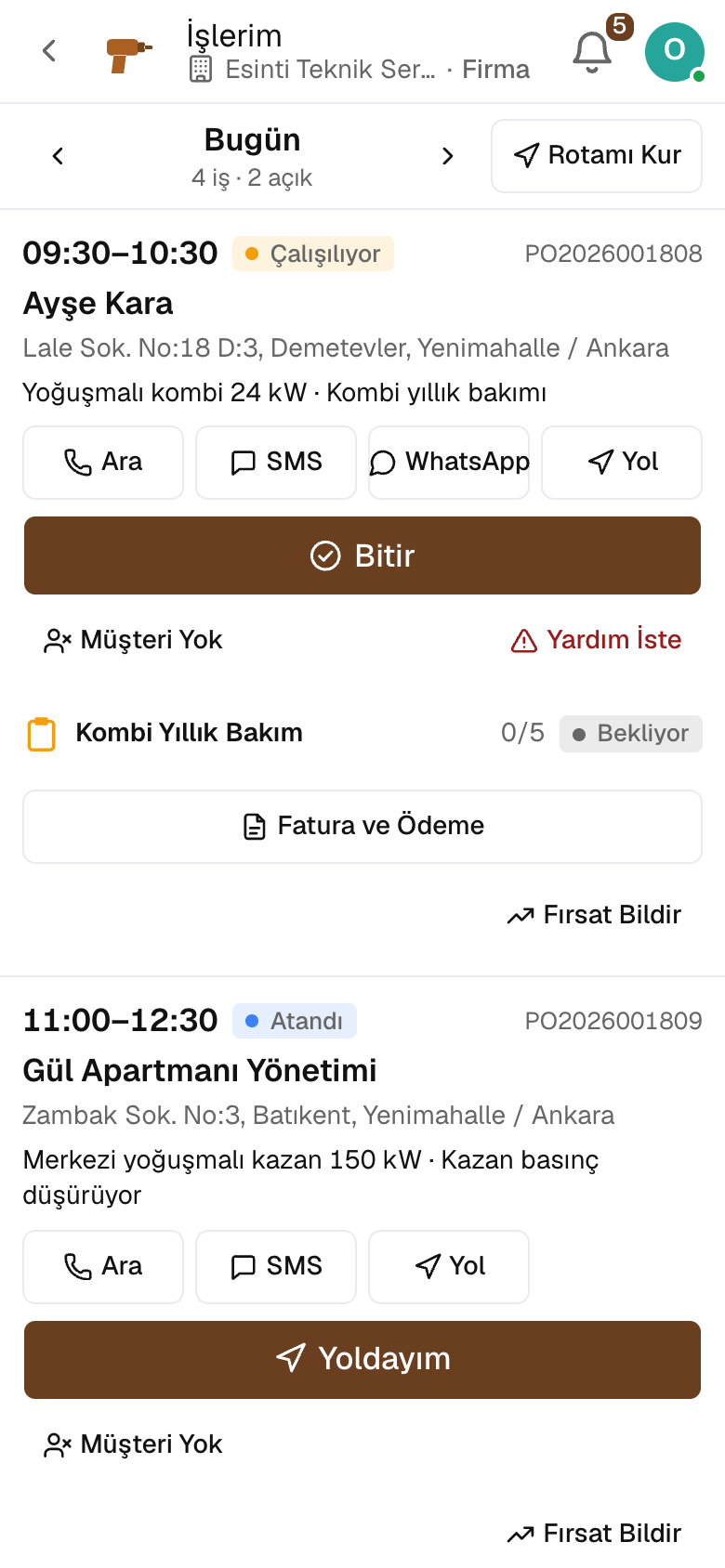
Jobs in progress and en route are on top; switch the day to see tomorrow's jobs.
Call the customer with one tap, send an SMS or WhatsApp message, and get directions to the address.
Arrival, start and finish times are recorded; labor time and job cost are derived from them.
The unit's previous services, warranty and contract coverage show on site; a recurring fault is linked to the earlier job.
In a basement or boiler room, steps and photos wait on the phone and are sent when the connection returns.
Parts used come out of the technician's van stock; a request is opened for parts that are not in stock.
04 / 06
The job runs on a checklist filled in step by step. If the company's closing rule requires a photo or signature, what is missing is shown and the job does not close.
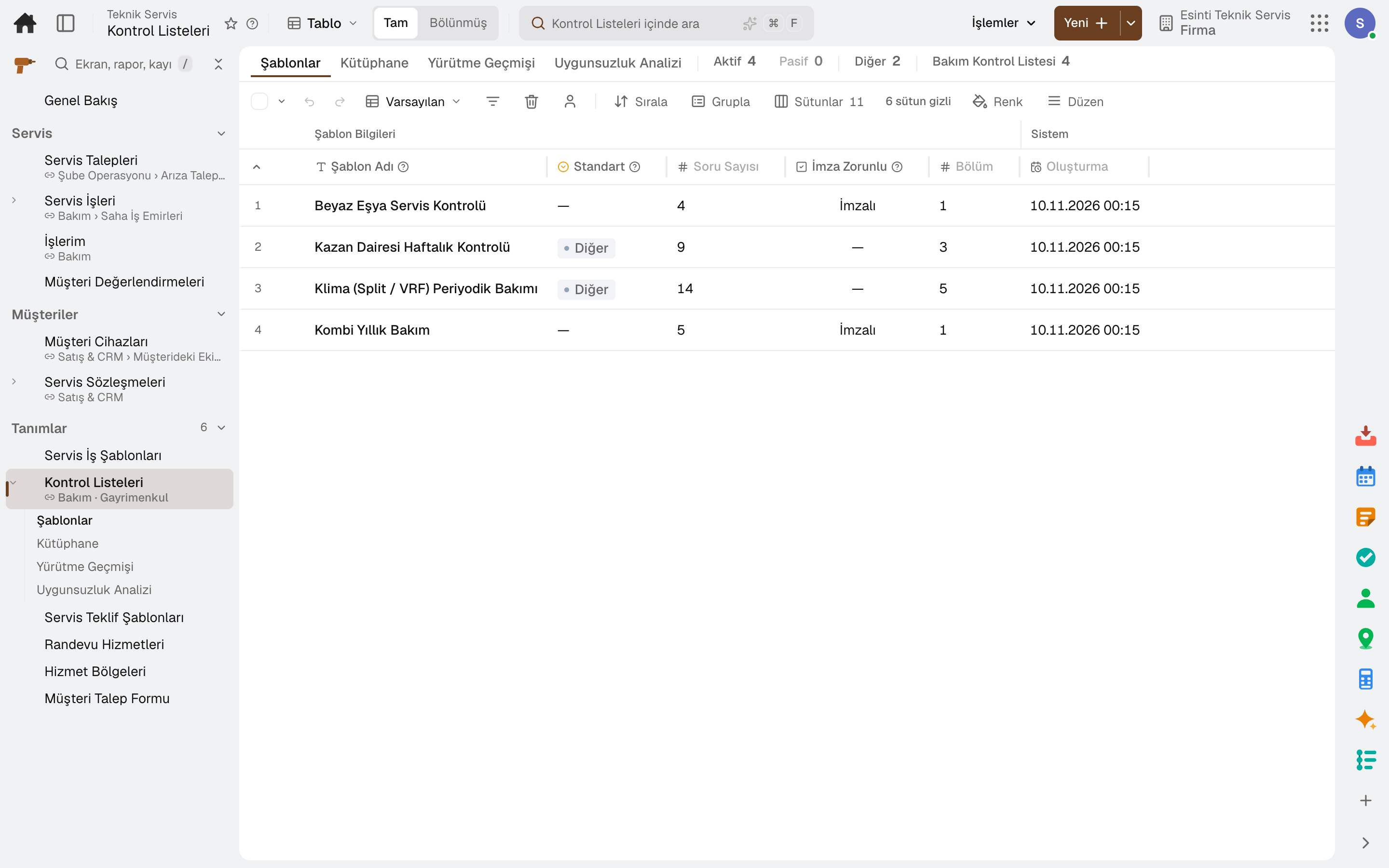
Each item is marked pass, fail or not applicable; readings, choices, photos and signatures are on the same list.
A service job with an incomplete checklist does not close.
A failed answer opens a new request; it also shows on the customer's service report.
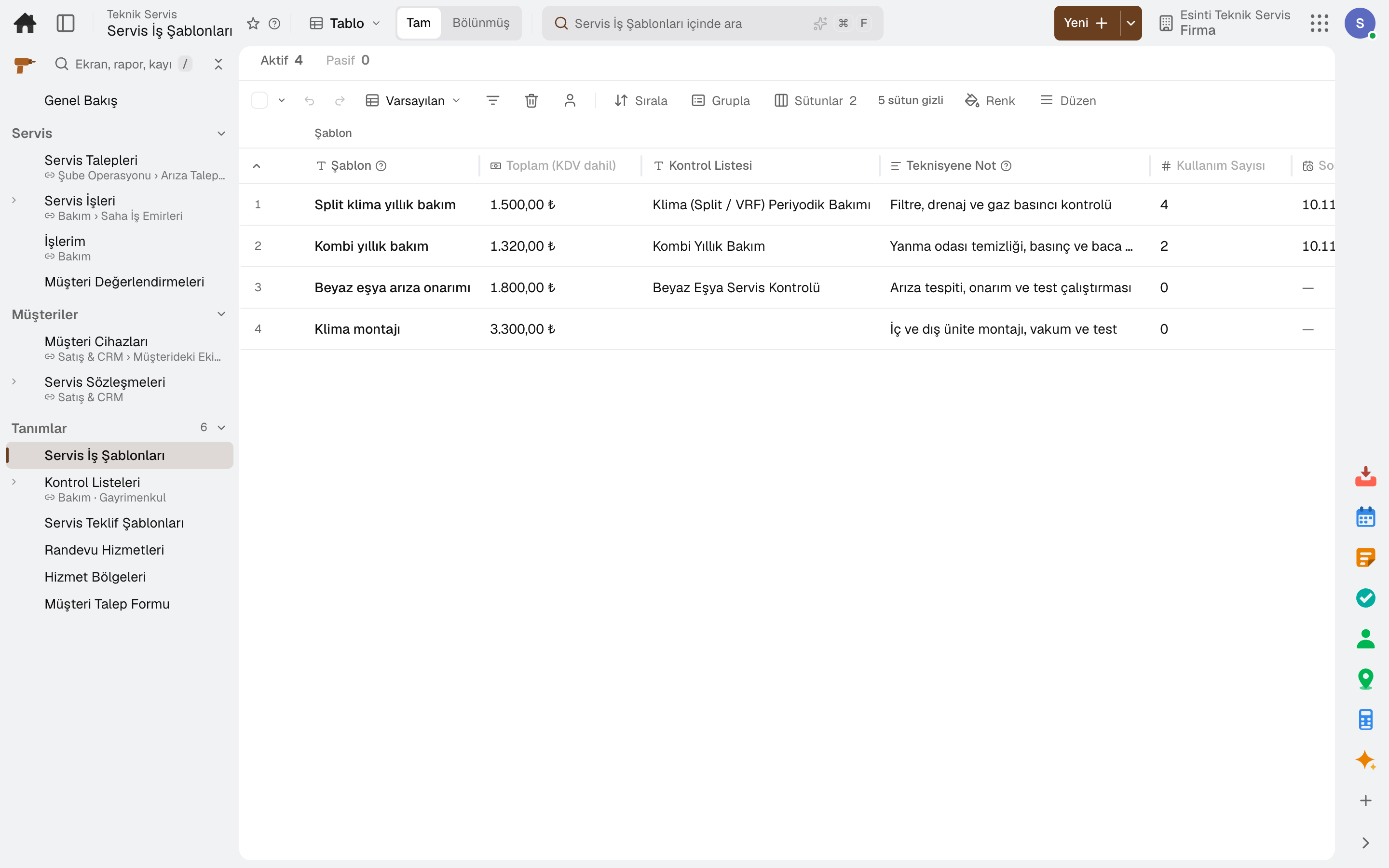
The lines, checklist and technician note of a common job are set up once; they are picked for a new job or applied to an open one.
05 / 06
The technician builds a quote with options on site and the customer approves it through a link. The job's lines go on the invoice; cash or bank transfer payments are posted to the customer's account.
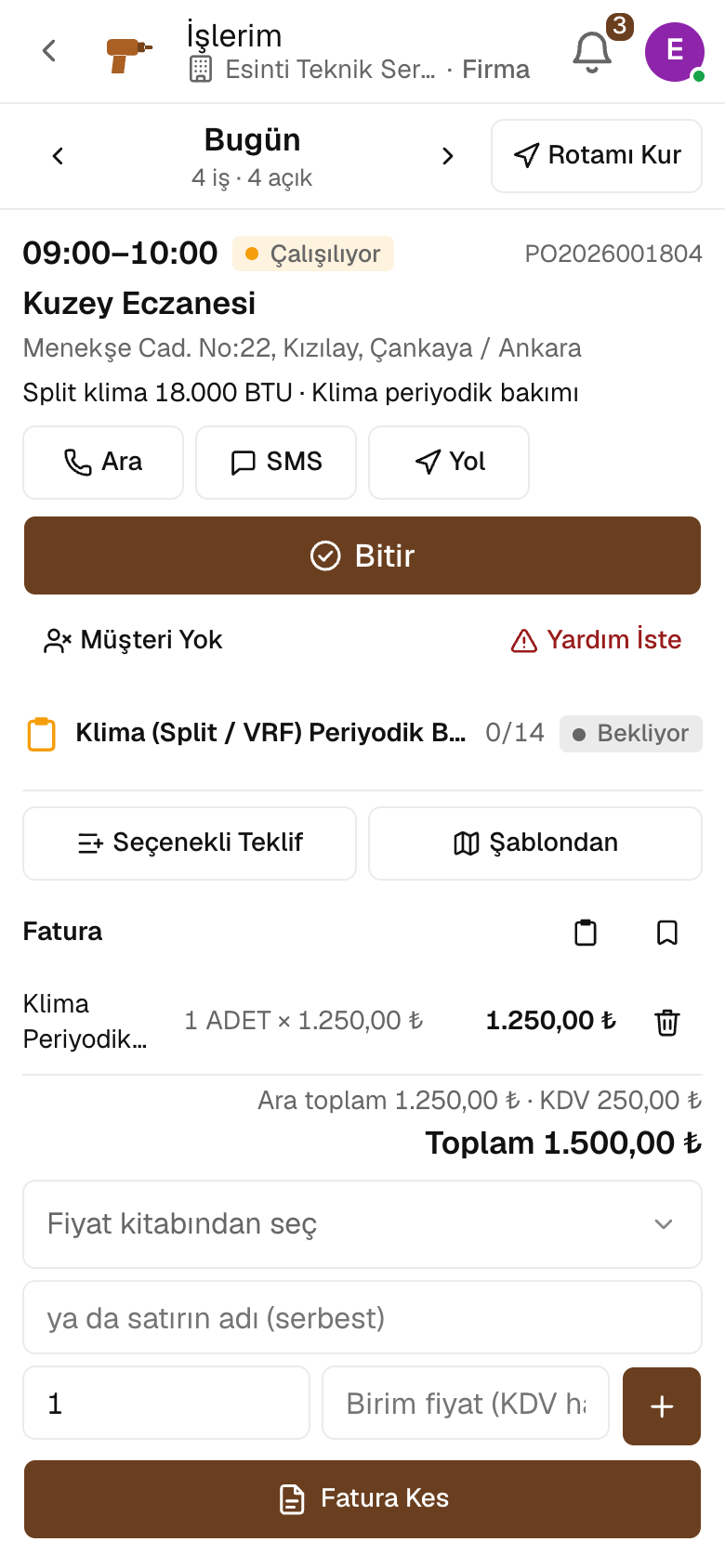
Options such as repair or replacement are presented with their own lines; the customer approves through the link with a signature or asks for changes.
An option on a job is saved as a template and set up on another job with one tap; lines come with the customer's current list price.
A draft sales invoice is opened from the job's lines; accounting posts it to the ledger, and no lines can be added afterwards.
Cash or bank transfer payments are posted to the cash box or bank and to the customer's account, and the job becomes «Paid».
Labor time and the cost of parts used show against the job's revenue.
06 / 06
Units installed at customers are recorded with their address; maintenance contracts are managed by coverage and term. The customer rates completed jobs.
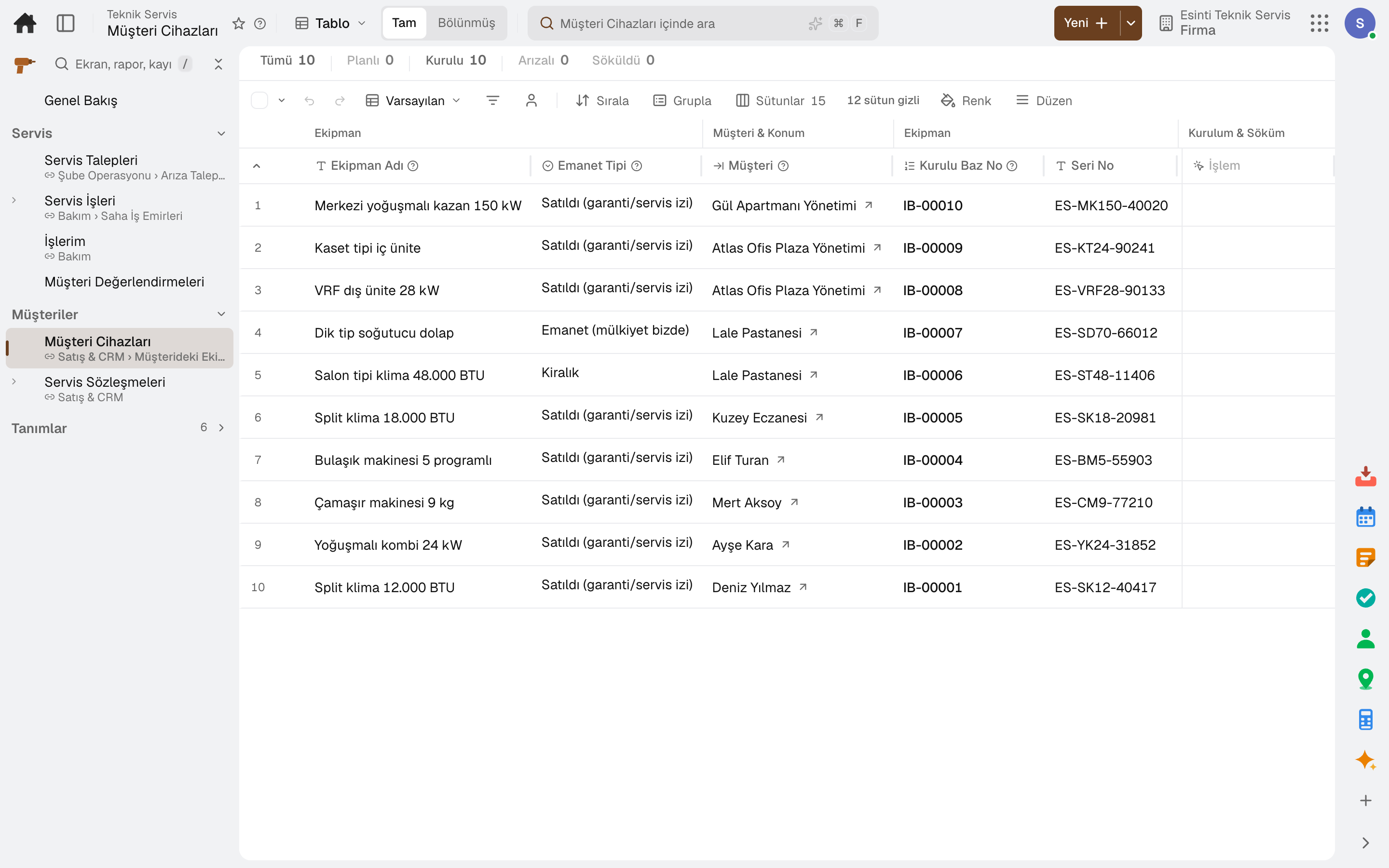
A unit is recorded with its customer, site and address; installation and removal dates, loan or rental status and deposit are tracked, and fault reports are opened from the record.
A contract is kept with its coverage, term and units; covered jobs are linked to the contract, and response and resolution times are tracked.
The technician sees the warranty on site; warranty claims and faulty part returns to the manufacturer run from the job.
The maximum repair time, loan unit, intake receipt and service slip are tracked on the job.
The customer gives a 1–5 rating and a comment from the job page; a low rating triggers a notification, and customers who have not rated get a reminder.
Sub-modules
This list is generated from the product itself; it grows as new functions are added to a sub-module. Master data and settings are the shared ground of every module and are not counted as sub-modules.
In the package
All on the same data model: a record entered in one module is never re-entered in another. The other 20 modules are open in your account too.
Maintenance management software
Breakdowns reported by QR, maintenance plans from the calendar.
5 sub-modulesSales and customer management software
One customer record from opportunity to invoice.
16 sub-modulesInventory and warehouse management software
Every product's location, batch and movement at your fingertips.
9 sub-modulesAccounting software
In the journal the moment the invoice is issued; no waiting for month end.
13 sub-modulesTry it free for 15 days; no credit card needed. We reply to your questions within one business day.