Register
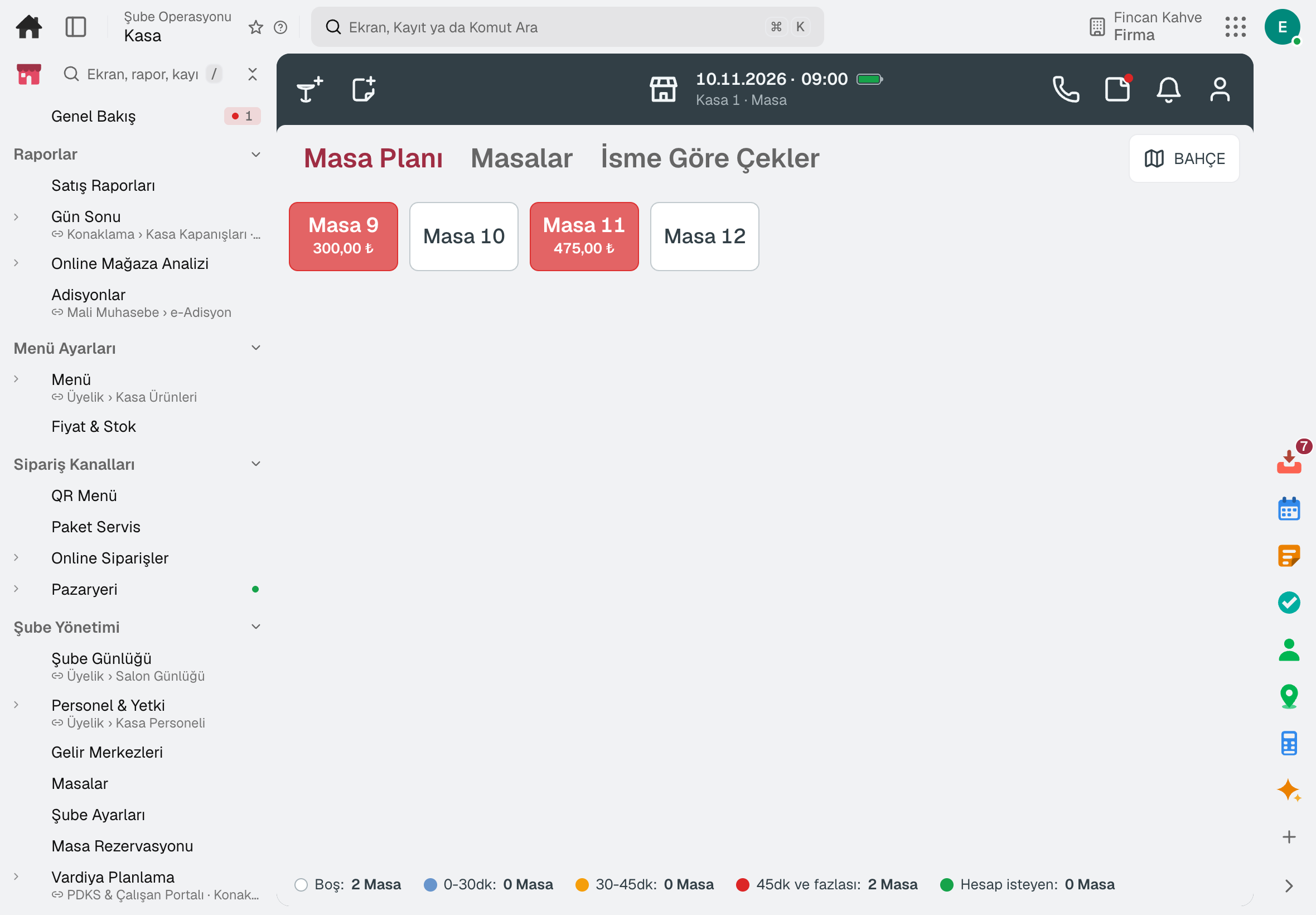
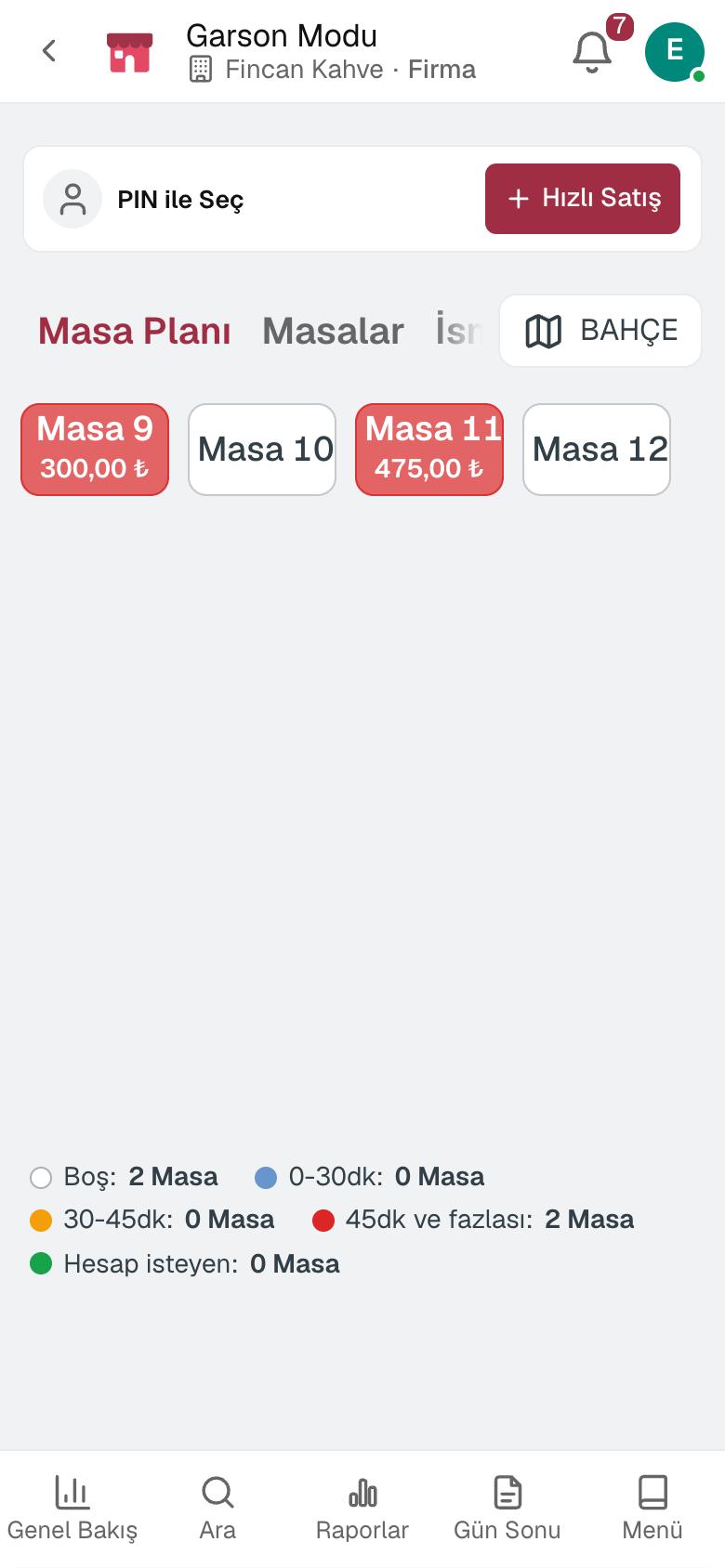
The till runs on a tablet and in the browser; buttons and screens are arranged for your business.
A till for single-register cafés, grocery stores, patisseries and shops. No separate software to install: products, prices and stock, cashier permissions, kitchen display, Price Checker, end of day and reports come ready.
No credit card, nothing to install.
Who it's for
The same till, set up for your business: each line of business has a page describing its own flow and ready-made template.
Take the order, take the payment, send it to the bar: the counter flow on one screen.
Café POS softwareScan, list, pay: from barcode to end of day, the shop on one screen.
Barcode POS software for grocery stores and corner shopsFrom the display to end of day, the day's products and what is left are on record.
Patisserie and bakery POS softwareFrom the morning price to the evening sort-out, the stall is on record by the kilo.
Greengrocer POS softwareHighlights
The till runs on a tablet and in the browser; buttons and screens are arranged for your business.
Each product's till price and whether it can be sold today in one list; sales are deducted from stock, and a product that is out of stock is closed to sale.
What can be done at the till comes from the permission group, and every sale is recorded under the cashier's name; an action without permission asks for a manager PIN, and voids and complimentary items are recorded with their reason.
Items sent from the till land on the kitchen display; it works without a paper printer too.
The customer scans the product on a tablet in the aisle and sees its name and the price the till will charge.
The till session closes with opening cash, sales, collections and count difference; the Z receipt is posted to the treasury cash account and to accounting, and net sales and average check are in the reports.
A day
Every step works on the same data: a record entered in one step is never keyed in again in the next.
The till session starts with the opening cash.
Products are added by touch or barcode and payment is taken; items for the kitchen land on the kitchen display.
A sold-out product closes for sale; price changes are made from one list.
The till is counted and the difference is recorded; the Z receipt is posted to accounting.
The day's sales are seen by product, category, hour and payment type.
As you grow
When you open a second till or a branch you continue in the same account: products, customers and past sales stay in place. Branches are managed with the packages below; accounting, inventory and purchasing are on the same data.
Retail management software — for store chains, grocery stores, corner shops and greengrocers.
5 modules in the packageRestaurant management software — for restaurants, cafés, patisseries and fast food outlets.
5 modules in the packageRegister, tables, branch orders and shelves on one branch screen.
10 sub-modulesInventory and warehouse management software
Every product's location, batch and movement at your fingertips.
9 sub-modulesAccounting software
In the journal the moment the invoice is issued; no waiting for month end.
13 sub-modulesFrequently asked
No. The till opens on a tablet or in the browser; the device is linked to your account once, by an authorised sign-in or by QR approval from a phone.
You continue in the same account; products, customers and past sales stay where they are, and branches are managed with Retail or Restaurant.
No. Checks, items, payments and discounts are queued on the device; the records are sent when the connection returns.
The phone or tablet camera scans the barcode.
No. The Z receipt is posted to the cash account and to accounting; accounting, inventory and purchasing are open in the same account.
The fiscal receipt is issued from the fiscal cash register; by default the till works without a connection to it.
Yes. You can take your data out at any time via Excel, CSV or the API.
Free for 15 days
Every app is open for 15 days. No credit card, no installation; your team signs in from the browser.
Try it free for 15 days; no credit card needed. We reply to your questions within one business day.