Skip to content
Lidyos
Retail & Services

Branch OperationsRegister, tables, branch orders and shelves on one branch screen.

Till (POS) and table reservations, POS sales and daily revenue, menu engineering, branch-to-head-office orders, routing of online orders to branches, assortment and shelf planograms in one app.

  • 10 sub-modules
  • 24 modules at the same price

Industry packages: Lidyos Fashion · Lidyos Fitness · Lidyos Hotel · Lidyos POS · Lidyos Restaurant · Lidyos Retail

Industries: Textiles and apparel · Retail and store chains · Grocery stores, corner shops and greengrocers · E-commerce and omnichannel sales · Restaurants and cafés · Patisseries and bakeries · Hotels and lodging · Dealer and franchise networks · Gyms and studios

Roles: Branch manager · Cashier and waiter · Franchise and dealer manager · Courier · Receptionist and room attendant · Club manager and trainer
Register
Waiter Mode
Screen in the product
  • Register
  • Waiter Mode

What is it, and why do you need it?

What is Branch Operations for?

When a branch manager runs the register in one program, orders over the phone and shelf labels by hand, headquarters learns what happened at the branch the next day, and cost is calculated at month end.

Branch Operations brings the register, branch orders and the branch daily into one place. POS sales are deducted from stock, daily net revenue is shown together with the cost of goods sold, and the shelf labels to print queue up when a price changes.

Scope: Runs the branch home page, POS and restaurant operations, omnichannel orders, assortment and branch performance.

Highlights

What do you do with Branch Operations?

01

Till (POS)

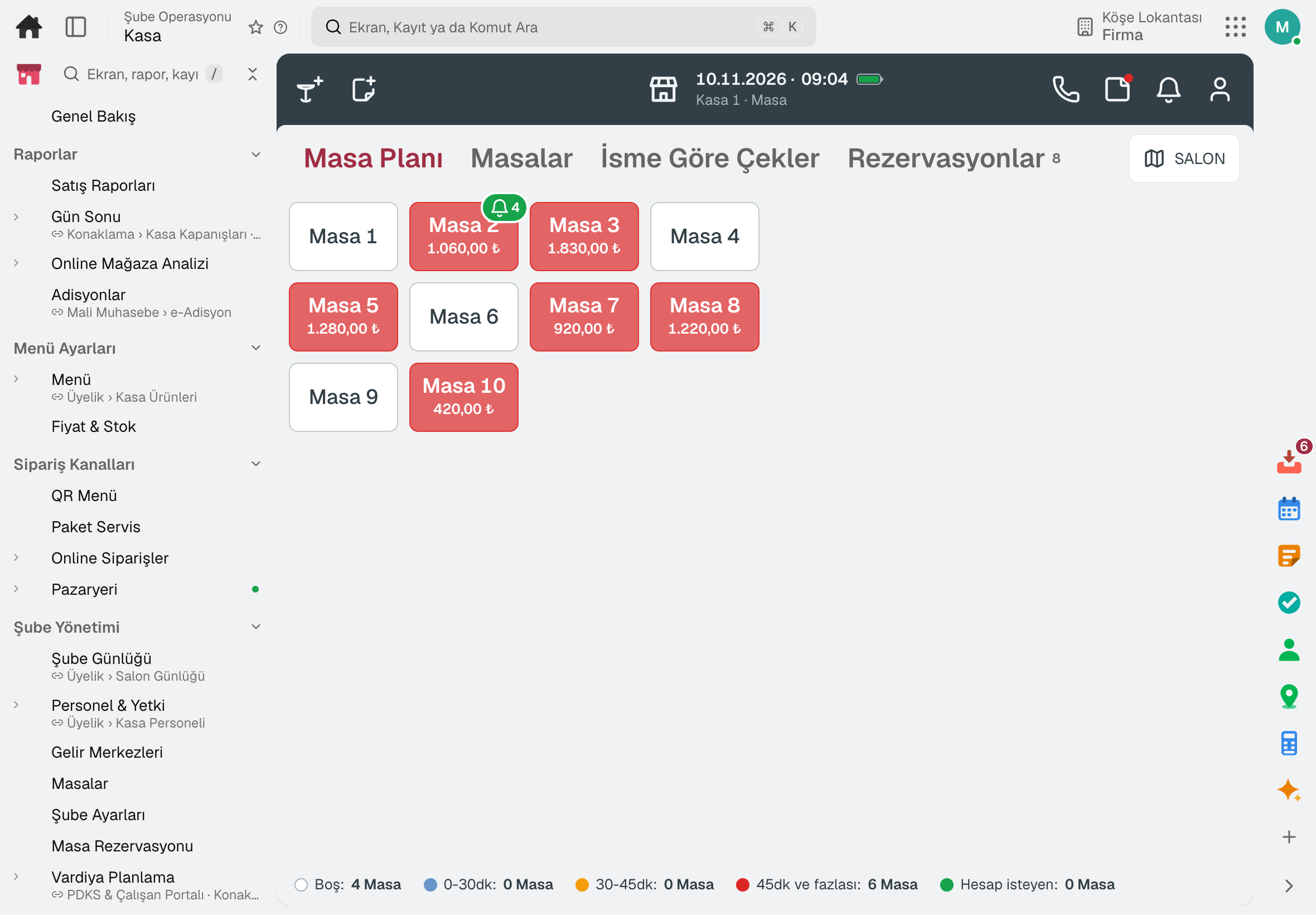
Pick a table from the floor plan, add items from the menu and take payment; the sale is deducted from stock and the receipt comes out of the printer.

02

Table reservations

Reservations by party size and time; deposits, allergy notes and no-show tracking.

03

Sales and revenue

Checks, daily POS revenue, daily net revenue and the cost of goods sold.

04

Menu engineering

Menu items are classified by profitability and popularity; price and action decisions are suggested.

05

Branch orders

Quick reorders from branch to headquarters; prices come from the contract and the order flows into the production plan.

06

Assortment and shelves

Seasons, branch clusters, shelf planograms and the shelf label queue on price changes.

Sub-modules

Branch Operations: 10 sub-modules

This list is generated from the product itself; it grows as new functions are added to a sub-module. Master data and settings are the shared ground of every module and are not counted as sub-modules.

Reports

  • ReportsPOS sales reports, with a grouped selector: sales (daily summary · product ABC · category · hour) · payment (type · VAT) · staff and loss (waiter · cancellation/discount/complimentary · loss prevention) · kitchen and delivery · QR menu; comparison with the previous period. Report email is under ⋮ Related.
  • End of DayTill sessions and Z reports: opening float, sales, collections, count difference; till movements (expense · cash in · tip payout). The Z slip is posted to the selected treasury cash box and to accounting.
  • Daily Sales & Food CostDaily net turnover and food cost by branch: turnover from POS bills, cost from ERP recipe × stock cost (nightly POS consumption calculation). Food cost % is calculated only over bills whose cost has been calculated; the coverage column shows that share.
  • Menu EngineeringClassifies menu items into profitability-popularity classes based on periodic sales and cost data; produces price and action decisions per item.
  • Store AnalyticsThe online store over the selected period: the conversion funnel from visit to order, sales, number of orders and average order value; day-by-day breakdown, best-selling and most-viewed products, collections by payment method, orders awaiting payment and cancelled orders. The funnel comes from the storefront's visit measurement; no personal data is kept.
  • e-Check (POS)Creates an electronic restaurant bill document from POS sales.

Order Channels

  • QR MenuThe guest scans the QR code at the table, sees the menu on their phone and places an order; the order lands in the Register for approval and is written to the tab. Click-and-collect and delivery orders come in from the branch QR, self-service orders from the kiosk. The preview on the left is the page the guest will see; the list holds the QR points (table · branch · kiosk) and their posters; below are appearance (name · logo · cover · colour · theme) and rules (order · call · price · sold out · payment). Reviews and the product report are in Reports, the menu banner is in Menu › Promotions.
  • Delivery OrdersDelivery: a package opened at the register by phone or from a platform moves through preparing · ready (automatically when the kitchen finishes) · on the way · delivered; assign a courier, dispatch, deliver. Below are delivery (service zones · couriers) and platforms (orders · menu mapping · settlement).
  • Order OrchestrationDecides which branch will prepare e-commerce orders and tracks preparation status; the mapping between marketplace product codes and materials is also here (listing and stock/price submission are on the Marketplaces screen).
  • MarketplacesPuts your products on sale on Trendyol, Hepsiburada and n11 and keeps them up to date: listing draft from the product card, marketplace category and attributes, controlled submission, and submission when stock and price change; the result of every submission is in the ledger, product by product.

Branch Management

  • Branch DailyThe branch manager's daily log: opening/closing routines, the day's cash (Z report or manual count), shift handover note and notes from previous days; the figures are in Overview.
  • Staff & PermissionsRegister staff and permission groups: name, phone, branch and PIN on the form (an HR card is opened on save); what they can do at the register comes from their permission group, and a manager PIN is required for anything else. Preset reasons (void · complimentary · discount · waste · refund) are here too.
  • Revenue CentersThe branch's revenue centres (dining room · takeaway · delivery · counter · online · food platform) and till rules: cover charge, mandatory reasons, one check per table, tip limit. A check takes its centre when opened, and reports break down by centre.
  • TablesMaster data of the table plan: hall/zone, table name, capacity and sequence. A bill is linked to a table by its name.
  • Branch SettingsRegister rules (valid in all branches of the company), by purpose heading: register and end of day · order acceptance and QR · devices · table and kitchen · staff, approval and tips · loss prevention.
  • Table ReservationTable reservations: the table is chosen from the floor plan (the same table can't be booked twice for the same time), and the guest is linked to a branch customer by phone. Waiting list, arrival flow (arrived · seated · completed), deposit and no-show history; the till's table plan shows the same records.
  • Shift PlanningCreates the roster by assigning employees to daily shifts. Builds the roster automatically based on workload and constraints; publishes and fills open shifts that have no employee assigned. Shift swaps (offer + manager approval) and employees' weekly availability/preferences are parts of the same screen; the hourly staffing demand forecast from POS sales and the labor cost ratio (plan/actual variance) are read together in the Analysis section for the same location and range.
  • Attendance TodayWho came in today, who is inside, who is on break, who didn't come, who was late or left early — as a list of people, refreshed every minute.
  • RoutinesLists, by branch, the opening/closing/shift routines field staff must perform today; tap a card, answer the template questions and complete with photo + signature.
  • Fault RequestsCollects maintenance and breakdown requests coming from the field/branch and converts them into work orders — this is the main way to report a breakdown.
  • Kitchen EquipmentMonitors branch kitchen equipment; opens a breakdown as a maintenance notification and closes the repair. Each piece of equipment's maintenance card is opened together with the record.

Stock

  • Cycle CountingRuns cycle counts planned by ABC class; compares system and counted quantity by shelf and records the difference with its reason.
  • Scrap & LossSets aside spoiled or unhygienic products as scrap waste.
  • Branch OrderProvides a simplified order interface for a branch to quickly place reorders with headquarters; the price comes from the contract or price list, and the order feeds into the production plan.
  • POS Consumption PipelineDeducts recipe-based stock consumption according to POS sales.
  • Period Stock ReconciliationCompares, on a single line per material, the opening of the period, purchases · returns · transfers · production · disassembly · POS consumption · waste buckets and the count; the difference between the calculated closing and the count shows the unexplained loss.
  • Stock ThresholdsManages material × plant reorder point, safety stock and maximum stock thresholds; calculates thresholds from consumption, applies suggestions and takes the material into planning.
  • Forecast-Based Replenishment ProposalsGenerates replenishment proposals from consumption (POS · shipments · production · transfers) and the net position for materials planned by forecast (MRP type VV); an approved proposal is bridged to a purchase requisition or a stock transfer order. Bulk Branch Replenishment, which plans replenishment from the central warehouse to several branches in one run, shares a scarce material's proposals among the branches and turns the plan into stock transfer orders, is also on this screen. Reorder point (VB/V1/V2) materials fall under Production ▸ MRP Run.
  • Batch MasterDisplays and updates the master data of existing batches.
  • Markdown / Shelf-Life DiscountSets the discount rate of a product nearing its expiry date by the remaining days (material · category · plant); Stock › Markdown Suggestions takes the rate from this rule, and an approved suggestion is applied in orders and at the POS until the expiry date and only up to the quantity at risk of spoiling (the rest at list price).

Quality & HSE

  • Temperature LogsManages line cleaning (CIP) cycles, the cleaning schedule, allergen changeover cleaning, ATP surface tests, and branch temperature records on tabs of the same screen.
  • HACCPManages HACCP plans (hazard analysis, critical control points, version), CCP monitoring status, and critical limit deviations on tabs of the same screen.
  • Food Safety IncidentRecords food safety incidents (HACCP); manages authority notification and recalls.
  • Accidents & IncidentsRecords and investigates workplace accidents and environmental incidents. In the Root Cause Analysis section, the root causes of incidents are analyzed; in the Frequency Rates section, accident frequency rates of recent years (TRIR · LTIR · DART) are compared side by side, and you can drill down from a row to that year's incidents; in the QR Reporting Points section, QR-coded points for reporting incidents in the field are defined.
  • Product ComplaintsThe canonical register of product complaints from consumers (BRCGS complaint record): records them with channel, place of purchase, expiry date and retained-sample link and ties them to a corrective action. A business customer's defective delivery notice is opened in Nonconformity Records with the "customer" source.
  • Quality CAPAManages corrective and preventive actions (CAPA) for quality nonconformities; in the Action Plan section, quality actions derived from the CAPA are tracked by owner and due date.

POS Settings

  • DevicesRegister, kitchen and waiter tablets (connected once on the tablet at the /pos address with an authorised login or QR approval; the ERP password does not stay on the device), POS registers, receipt and kitchen printers, kitchen screens, printing and receipt templates; the print service on the restaurant computer and the queue are in the ⋮ Related menu of Printers.
  • Buttons & ScreensRegister buttons: payment types, the buttons at the bottom of the check screen (Take Payment · Send Order · Cash · Print Bill), Functions and custom actions that only run steps — name, colour, icon, size, order, revenue center and device. A button can run ordered steps (print bill · discount · preset payment · currency · account · coupon · fiscal printer · X/Z report …) and a final step (close check · payment screen · PIN screen); you choose which register screens it appears on and whether it opens the cash drawer, shows on mobile, counts as cash and is included in the shift total. The Screens tab shows how the register will look in the chosen center and device; buttons are reordered there by dragging.

Customers & Loyalty

  • ClientsThe branch's customer cards: phone, orders and spending, last visit; the detail shows addresses, recent deliveries and checks linked at the till. The customer's class (VIP · Student · Corporate) is set in the Tags column, and personal discounts are defined by that tag.
  • Business PartnerKeeps suppliers, customers and employees in a single business partner record; manages balance, contact and bank information.
  • Gift CardsSells prepaid gift cards, tracks balance movements (load/spend/refund) in a ledger, and shows the total outstanding liability.
  • Loyalty ProgrammeManages loyalty card, points, rewards, and referral programs.
  • Google BusinessManages Google Business profiles (branch, rating, review count); in sections of the same screen it shares posts to profiles, replies to customer reviews and shows impression, search and direction request statistics by branch.

Till Apps

  • RegisterCashier screen: pick a table from the floor plan, tap menu items to add them, take payment and close the check. The fiscal receipt is printed by the fiscal cash register (ÖKC); by default it runs without an ÖKC integration.
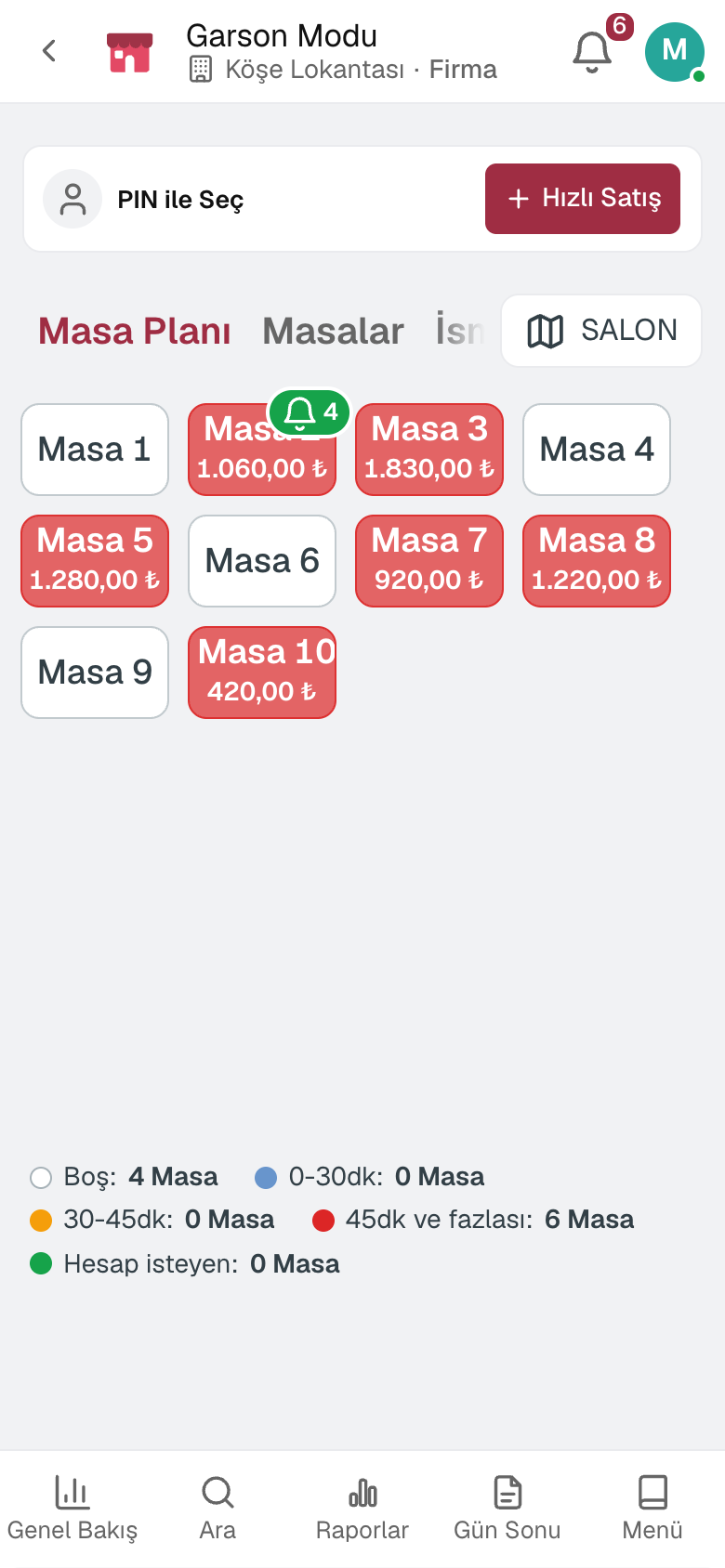
  • Waiter ModeWaiter mode: pick a table from a phone or tablet, add items to the check and send them to the kitchen; approve QR orders placed at the table. Staff with the courier role see their own deliveries, dispatch them and mark them delivered.
  • Kitchen DisplayKitchen display (KDS): items sent from the cash desk appear on table cards; a tap advances the item, and the waiting time is flagged by color. Works without a paper printer too.
  • Price CheckerPrice check: on a tablet or computer in the aisle, the customer scans a product and its name and the price the register will charge are shown in large type; after a few seconds the screen returns to standby. The branch comes from the facility in the top bar.

Assortment & Shelf

  • Retail SeasonsDefines retail seasons; the opening and closing calendar of branch product listing is derived from these dates. Calendar warnings (deviation · season-ended listing · undefined season label) are also here.
  • Broken Size RunsBroken size runs in stores by colour and size: which store is missing which size of which style, how much of the run is in stock, period sales. «Suggest Rotation» proposes the missing size from a store with surplus and opens a transfer order per store pair; open transfers are taken into account.
  • Branch ClustersDivides branches into clusters and lists a set of products in all branches of the cluster at once (with preview).
  • Store AllocationDistributes a material's total quantity from headquarters to stores: a rule (equal · sales history · demand forecast · stock gap · weight · manual) calculates the store shares, and releasing opens a stock transport order per store.
  • Shelf LabelsShows the queue of shelf labels that must be reprinted when the price changes and marks them as printed in bulk.
  • Shelf PlanogramDefines the store shelf layout: which product goes in which branch, on which shelf, and with how many facings.

Frequently asked

About Branch Operations

Do we need a separate POS program?

No. The register is part of the platform and runs in the browser; sales are deducted from stock.

Are cashiers and waiters counted towards the fee?

Everyone with an employee card is counted; giving them a register account doesn't change the fee.

Which branch do e-commerce orders go to?

The Order Orchestration screen selects the branch that will prepare the order and tracks preparation status.

Close next month end without a reconciliation marathon.

Try it free for 15 days; no credit card needed. We reply to your questions within one business day.